Introduction to Kling 2.6 Motion Control
Most AI video generators try to infer motion from text alone, which often leads to stiff or unpredictable results. Kling 2.6 Motion Control takes a different approach: you supply a character image and a motion reference video, and the model transfers the motion frame‑by‑frame onto your character while preserving identity and consistency.
Now both Kling 2.6 Pro Motion Control and Kling 2.6 Standard Motion Control are available inside Akool Character Swap, making it easy to animate swapped characters or still images using real motion clips—perfect for dance videos, action shots, virtual influencers, and more.
If you want reliable, controllable AI video motion transfer instead of guesswork, Kling 2.6 Motion Control on Akool gives you a practical, production‑ready pipeline.
Key Features & Major Upgrades
1. Exact Motion Transfer from Reference Videos
Both Kling 2.6 Pro Motion Control and Kling 2.6 Standard Motion Control are designed to transfer motion from a reference video onto a character image:
- You upload a 3–30 second motion clip (dance, walk, workout, gesture, action).
- The model extracts the full motion sequence frame‑by‑frame.
- It applies that movement to your character, generating smooth, realistic AI character animation.
The result is your subject performing those exact movements, with accurate timing and full‑body motion.
2. Pro vs Standard: Two Levels of Motion Control
On WaveSpeed and in the model docs:
- Kling 2.6 Pro Motion Control is positioned as an advanced motion transfer model that captures detailed posture, limb positions, and complex actions, even for fast or intricate sequences.
- Kling 2.6 Standard Motion Control is a high‑performance image‑to‑video motion transfer model tuned for everyday use—dance videos, simple action sequences, and portrait animation—while still preserving identity and appearance.
In Akool, this gives you flexibility:
- Use Pro when you need maximum fidelity for complicated choreography or stunts.
- Use Standard when you need fast, reliable motion transfer for social clips, UGC‑style content, or quick concepts.
3. Character Preservation & Orientation Control
A critical part of good AI video creation is keeping your character stable and recognizable. Kling 2.6 Motion Control focuses on:
- Character preservation – Maintaining your subject’s identity, outfit, and general appearance across the entire video.
- Temporal consistency – Reducing flicker and shape changes from frame to frame.
You also get orientation control:
- In Pro, you can switch between “image” framing (match the reference image composition) and “video” framing (match the reference video composition), with different duration limits.
- In Standard, you can set the character orientation (front, side, back) to match how your subject is facing in the source image.
This orientation logic is especially useful when combined with Akool Character Swap, where swapped characters must align with the camera angle and framing.
4. Audio Preservation Option
Kling 2.6 Motion Control also handles sound:
- Both Pro and Standard include a keep original sound switch that lets you preserve or mute the audio from your reference video.
This is ideal for:
- Dance videos and music‑driven content (keep the original track).
- Clips where you plan to add custom sound or voiceover later (export silent video).
By keeping audio control simple, Kling 2.6 Motion Control fits smoothly into existing editing and publishing workflows.
5. Built for Real‑World Motion Use Cases
The official docs highlight a variety of use cases where Kling 2.6 Motion Control excels:
- Dance videos – Apply trending choreography to your own characters.
- Action sequences – Map stunts, workouts, or martial arts moves onto heroes, avatars, or mascots.
- Character animation – Bring illustrations, game characters, or AI‑generated avatars to life.
- Virtual influencers & content creation – Animate virtual hosts or influencers with natural motion.
With Akool’s integration, all of these become easier to execute at scale.
How to Use Kling 2.6 Motion Control in Akool
Even though Kling 2.6 Motion Control is a powerful AI video model, Akool wraps it in a simple UI so you don’t need to touch raw parameters.
Step 1 – Open Akool Character Swap
- Log in to Akool.
- Go to Character Swap in the AI video tools.
- Choose Kling 2.6 Motion Control and select either Pro or Standard, depending on your motion complexity.
Step 2 – Upload Your Character Image
- Upload a clear character image of the person or avatar you want to animate.
- For best results:
- Ensure the subject is well‑lit and not heavily occluded.
- Include as much of the body as you need to animate (upper body or full body).
This image is the identity that Kling 2.6 Motion Control will preserve.
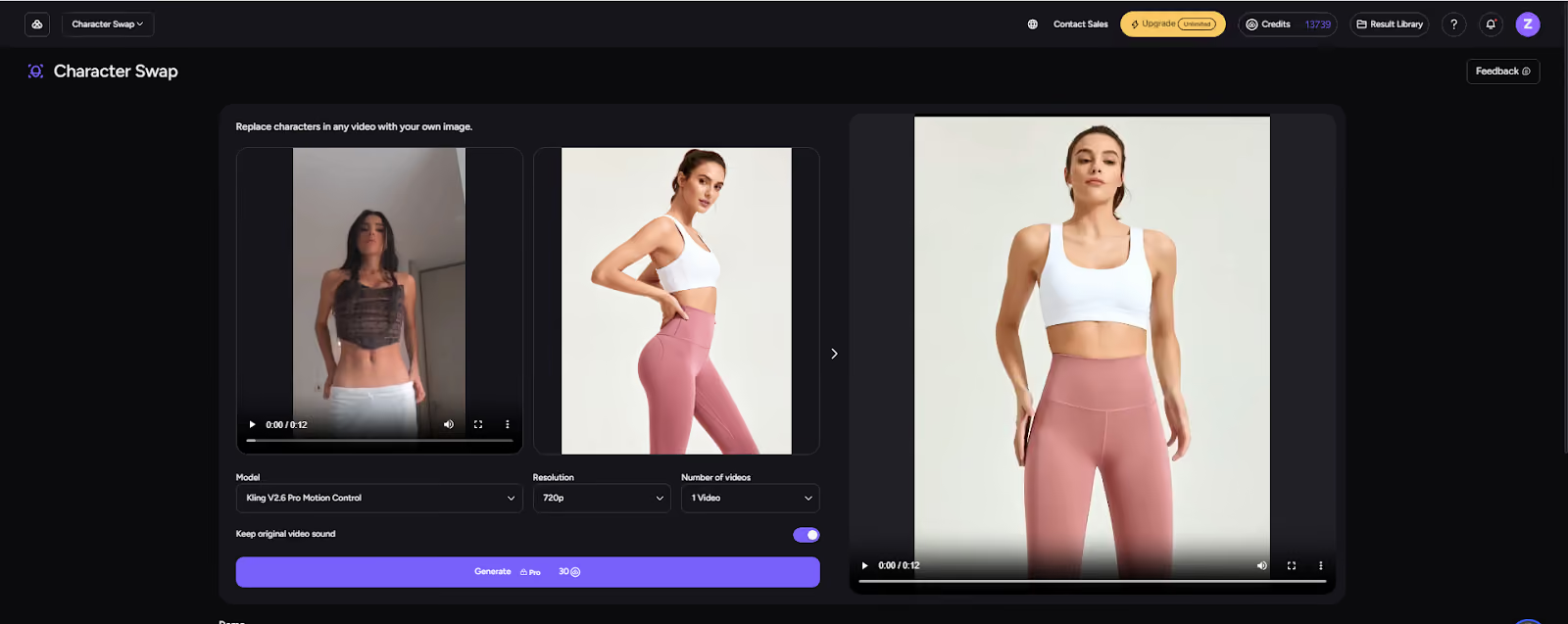
Step 3 – Upload the Motion Reference Video
- Upload a motion video containing the movement you want to transfer:
- A dance clip
- A workout or yoga move
- A walk cycle, gesture, or action sequence
- Choose videos between 3 and 30 seconds with clear, distinct movement for the best motion extraction.
Akool passes this reference to Kling 2.6, which extracts the motion frame‑by‑frame.
Step 4 – Set Orientation & Audio
- Orientation:
- In Pro, decide whether to follow the image framing or video framing, which also affects maximum duration.
- In Standard, pick front, side, or back orientation to match your character’s pose.
- Audio:
- Choose whether to keep the original sound from the motion video or generate a silent clip, based on your editing needs.
Akool exposes these as simple switches and dropdowns—no code required.
Step 5 – Generate, Review & Iterate
- Click Generate and let Kling 2.6 Motion Control animate your character.
- Review the result for:
- Motion accuracy
- Character stability
- Overall look and composition
- If needed, adjust orientation or swap in a different motion clip and generate again until you’re satisfied.
Step 6 – Export & Publish
- Export the final video from Akool in your desired resolution and aspect ratio.
- Use it directly in:
- TikTok, Reels, Shorts, YouTube
- Ad creatives and landing pages
- VTuber / virtual influencer streams or brand content
Because the motion is grounded in real footage, the animations feel more natural than purely text‑driven alternatives.
Conclusion
With Kling 2.6 Pro Motion Control and Kling 2.6 Standard Motion Control now integrated into Akool Character Swap, you can move beyond simple face swaps and static avatars. You can:
- Transfer motion from any reference video to your character
- Preserve identity and style with frame‑accurate motion transfer
- Choose the right motion‑control level (Pro vs Standard) for your project
- Control orientation and audio behavior to fit your production needs
All of this is available through a streamlined Akool AI video workflow—no complex setup, no scripting, just upload, configure, and generate.
👉 Log in to Akool, open Character Swap, select Kling 2.6 Motion Control (Pro or Standard), and start turning your character images into fully animated AI videos today.