Introduction to Kling 3.0
Short‑form video is getting more sophisticated: audiences now expect cinematic framing, consistent characters, and sound that actually matches the scene. Most creators, though, are still juggling separate tools for visuals, edits, and audio.
Kling 3.0 is Kuaishou’s latest unified, multimodal AI video model, built to simplify that entire stack. Officially released as part of a new 3.0 series, it supports text‑to‑video, image‑to‑video, video inputs, native audio‑visual generation, and intelligent editing in a single “All‑in‑One” framework.
The Kling 3.0 Video model can generate 3–15 second clips in one pass, with improved temporal coherence for short narrative sequences, and built‑in audio that includes dialogue, ambient sound, and effects.
Now that Kling 3.0 is available in Akool, you can tap into this engine directly inside your existing AI video creation workflows—for both text‑to‑video AI and image‑to‑video AI.
Key Features & Major Upgrades of Kling 3.0
1. Unified All‑in‑One Multimodal Model
Kling 3.0 is not just another single‑purpose model. It’s a unified multimodal AI model series that:
- Includes Video 3.0 for short‑form video
- Image 3.0 for high‑resolution still images
- Video 3.0 Omni for reference‑based editing and character extraction
This All‑in‑One approach means Kling 3.0 can:
- Take text, images, short videos, or audio as input
- Output video with native audio, or images with consistent style and story context
- Support generation and editing in a more integrated way than earlier Kling versions
For Akool users, it’s a strong backbone for both new AI clips and reference‑guided edits.
2. Native 15‑Second Video Generation
Earlier Kling models were limited to shorter videos; Kling 3.0 pushes that boundary. The Kling 3.0 model:
- Supports single‑pass generation of 3–15 second clips
- Improves temporal coherence, so characters, lighting, and motion remain stable across the full sequence
That 15‑second range is ideal for:
- TikTok, Reels, and Shorts
- Social ads and product promos
- Mini‑stories, hooks, and teasers
You get enough time for a true beginning–middle–end in a single AI video generation.
3. Native Audio‑Visual Integration
One of Kling 3.0’s biggest upgrades is native audio‑visual integration:
- Generates synchronized lip‑sync and dialogue
- Supports multiple languages (including Chinese, English, Japanese, Korean, Spanish)
- Adds sound effects and ambient audio directly into the video output
Because audio and video are produced together, you get:
- Character speech that actually matches mouth movement
- Ambient sound that follows the scene (e.g., street, office, nature)
- Fewer post‑production steps to make the clip feel complete
For Akool creators, this turns Kling 3.0 into a true AI video generator with native audio, not just a silent visual model.
4. Intelligent Storyboarding & Multi‑Shot “AI Director”
Kling 3.0 is built for multi‑shot storytelling, not just a single static angle:
- An AI Director‑style system automatically handles camera angle scheduling and scene transitions
- It can create structured multi‑shot sequences from a single description—wide shots, close‑ups, and cutaways that feel like a real edit
This smart storyboarding makes Kling 3.0 especially powerful for:
- Short narrative pieces
- Explainers and tutorials with multiple viewpoints
- Product videos that combine context shots and detail shots
5. Enhanced Subject Consistency & References
Consistency has always been a pain point in AI video. Kling 3.0 addresses this with Video 3.0 Omni and its Video Element Reference system:
- Clone character performance and voice from video inputs
- Maintain identity across different angles and shots
- Keep key objects and design elements stable throughout the clip
This leads to more reliable character consistency in your Kling 3.0 AI video outputs—crucial for branded content, recurring characters, or narrative storylines.
6. Native‑Level Text Rendering & Editing
Kling 3.0 also improves in‑frame text:
- Supports native‑level text output, rendering signs, captions, labels, and UI elements more clearly
- Enables natural language edits, letting you adjust scenes and text using simple instructions
For creators and marketers, this is especially useful for:
- Ads with on‑screen copy
- E‑commerce videos with pricing or feature callouts
- Educational overlays and subtitles
How to Use Kling 3.0 in Akool
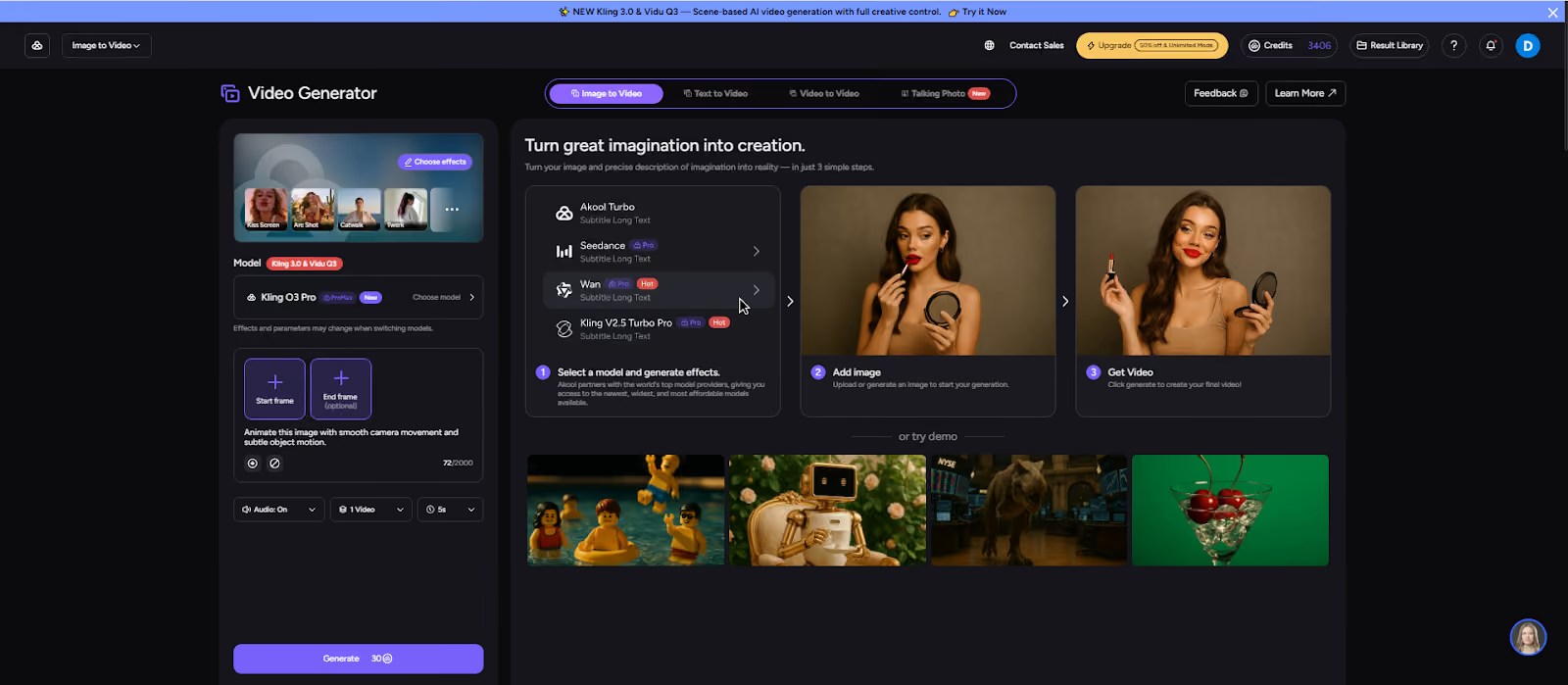
In Akool, Kling 3.0 appears as one of the available AI video models. You can use it in both text‑to‑video and image‑to‑video workflows.
The exact labels in your Akool interface may vary, but the core steps are generally the same.
1. Open Akool’s AI Video Generator
- Log in to your Akool account.
- Navigate to the Image to Video section.
- From the model list, select Kling 3.0 as your AI video generator.
2. Choose Text‑to‑Video or Image‑to‑Video
Kling 3.0 supports both:
- Text‑to‑Video (T2V):
- Choose the text input mode.
- Provide a clear, descriptive prompt covering scene, motion, and tone.
- Kling 3.0 will generate a video (with optional native audio) from your description.
- Image‑to‑Video (I2V):
- Choose the image input mode.
- Upload a single reference image (e.g., character, product, concept art).
- Kling 3.0 will animate this image into a short clip while preserving the core subject.
This dual‑mode flow lets you start either from pure ideas (text) or from existing visuals (image).
3. Configure Duration, Resolution & Audio
- Duration:
- Set the clip length within Kling 3.0’s range (typically 3–15 seconds).
- Set the clip length within Kling 3.0’s range (typically 3–15 seconds).
- Resolution:
- Choose 480p / 720p / 1080p depending on your distribution needs.
- Native Audio:
- Enable or disable native audio depending on whether you want built‑in dialogue and sound, or plan to add your own audio later.
Akool exposes these as simple dropdowns and toggles so you can match the output to TikTok, Reels, YouTube Shorts, or other channels.
4. Generate & Refine
- Click Generate to let Kling 3.0 AI video create your first version.
- Review the clip for:
- Visual quality and character consistency
- Story structure and camera movement
- Audio‑visual synchronization (if native audio is enabled)
If you want adjustments:
- Refine your text description (for T2V) or change your reference image (for I2V).
- Adjust duration, style, or audio settings.
- Generate again until the video matches your creative goal.
5. Export & Use in Your Content Pipeline
Once you’re happy with the result:
- Export the video from Akool in the desired resolution and aspect ratio.
- Use it across:
- Social platforms (TikTok, Instagram, YouTube, X)
- Ad campaigns and landing pages
- Storyboards, explainer content, or internal previews
Because Kling 3.0 supports multi‑shot, native‑audio AI video generation, many clips will be close to publish‑ready straight from Akool.
Conclusion
Kling 3.0 is a major leap in AI video generation: a unified, multimodal AI video model that delivers 3–15 second clips with native audio, multi‑shot storyboarding, strong character consistency, and native‑level text rendering—all in one engine.
With Kling 3.0 now available in Akool, you can bring that power directly into your text‑to‑video and image‑to‑video workflows—no extra tools required. If you’re creating social content, ads, explainers, or narrative shorts, Kling 3.0 on Akool gives you a fast path from idea to cinematic, audio‑synced video.