The best Halloween posts have a moment worth waiting for: an unexpected visitor, a strange discovery, or a reveal that turns the whole scene around. If you’re looking for Halloween AI content ideas, AKOOL’s seasonal templates give you a starting point for short videos, Reels, TikToks, and Stories.
Pick a scene from the AKOOL Halloween template gallery, add your reference image where the template asks for one, and make it your own. The seven ideas below include four templates to explore and three ways to use your finished clips.
7 Halloween AI content ideas to try
1. Give your pumpkin monster a soft side
A pumpkin creature approaches someone sleeping on the sofa—and ends up tucking them in. Start with Pumpkin Monster for a Halloween story that trades the expected scare for a sweet ending. The template’s prefilled prompt sets up that change of heart, giving your short video a clear beginning, turn, and ending.
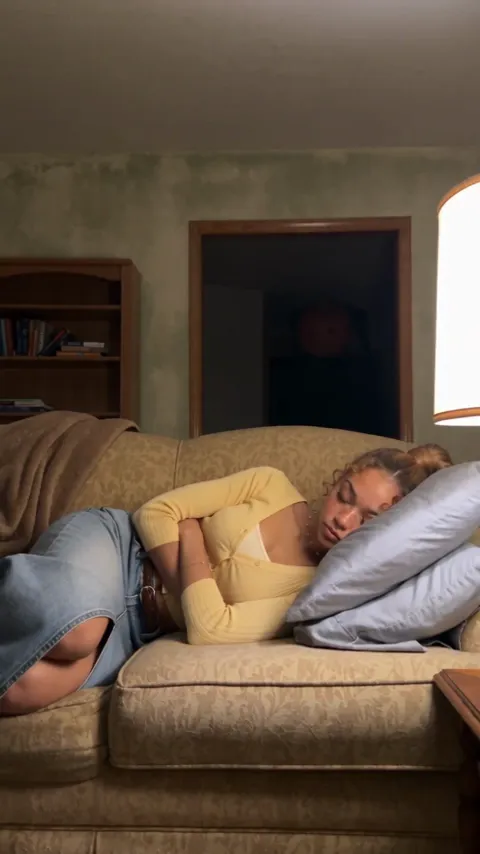
Caption idea: “Even the monster knows I need my sleep.”
Creative tip: Let viewers discover the ending. A caption that hints at the setup without explaining the twist gives them a reason to keep watching.
Try the Pumpkin Monster template →
2. Make an ordinary hallway feel unsettling
Build a post around the uneasy atmosphere of The Backrooms. An everyday setting gives viewers something familiar before the scene takes a stranger turn. This is a useful starting point for a Halloween video built around suspense and an uncomfortable sense of place.
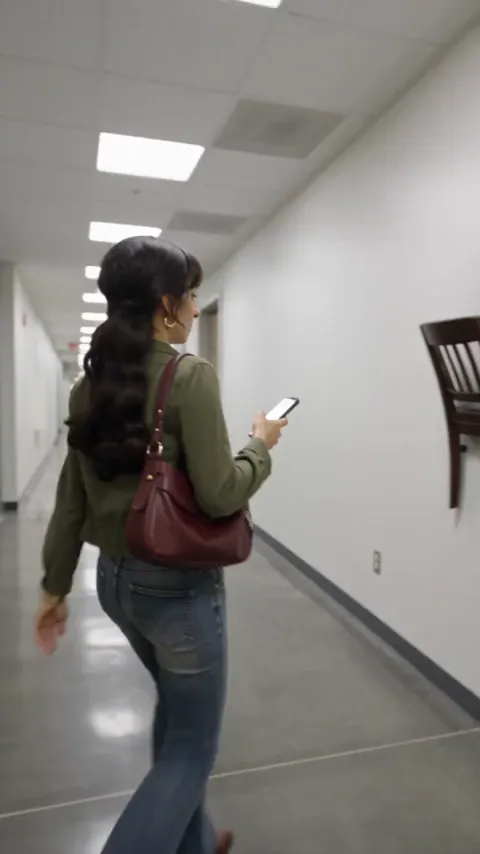
Caption idea: “Pretty sure this wasn’t the way out.”
Creative tip: Keep your caption short and let the setting carry the mood. You can add a question such as “Which way would you go?” when you share it.
Find The Backrooms in Halloween templates →
3. Turn a treasure hunt into a Halloween story
Use Pirate Gold as the starting point for a mysterious discovery. Let the scene do the storytelling, then invite viewers to decide whether they would open the chest. It’s an angle for creators who want an adventure theme in their Halloween content.
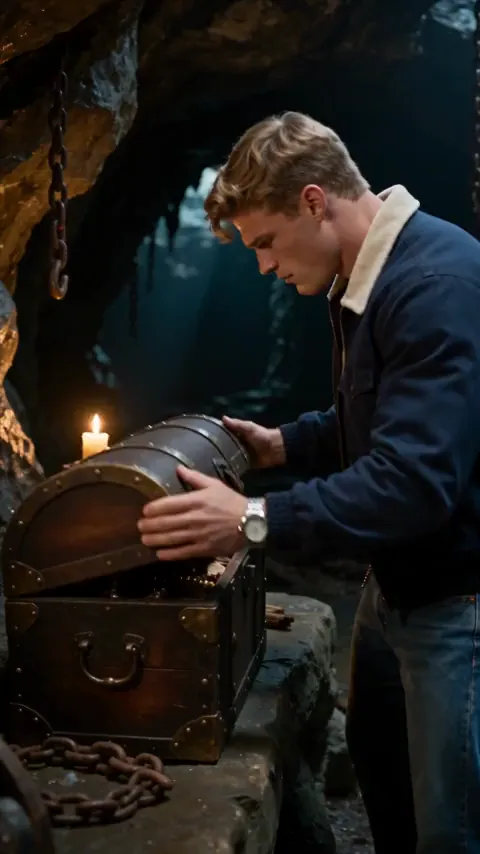
Caption idea: “You found it. But would you open it?”
Creative tip: Build the post around one decision or discovery. A simple premise is easier to follow in a short social video.
Find Pirate Gold in Halloween templates →
4. Go surreal with Doctor Pigeon
Halloween can be funny, too. The pigeon-headed doctor in Doctor Pigeon gives you an unusual character to build a playful post around. Pair the strange visual with an understated caption and let the contrast do the work.
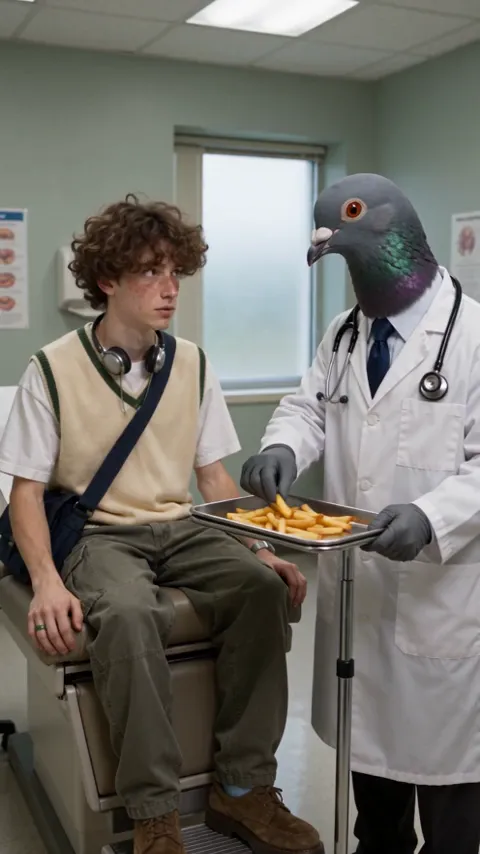
Caption idea: “My new doctor has some unusual qualifications.”
Creative tip: Share it as a standalone joke, or use it as one entry in a series of unexpected Halloween characters.
Find Doctor Pigeon in Halloween templates →
5. Let followers choose their Halloween universe
Create two different template clips and share them as a pair of Stories. Add a poll in your social app: the strange hallway or the mysterious treasure chest? This gives your audience an easy way to join in without requiring a long response.
Use the same reference image where the templates support it so viewers can compare the two settings. Keep the poll focused on one choice, such as “Where would you rather end up?”
6. Open your party invitation with a spooky scene
Use a Halloween template clip as the opening of a party invitation. Add a separate end card with the date, location, and RSVP details in your editor so the information stays clear and easy to read.
Keep the practical information outside the generated scene. That makes it easier to correct an address or update the time without recreating the video.
7. Show the photo, then reveal the story
Pair your original reference image with your finished clip. Show viewers what you started with, reveal the result, and name the AKOOL template you used so they can try their own version.
This format also works as a short creator walkthrough: source image, template choice, finished scene. Use your own generated result for the reveal, and give viewers enough time to see the change.
How to make a Halloween AI video with AKOOL
- Choose your scene. Open AKOOL’s template gallery and select the Seasonal Halloween category.
- Open the template. Select Create, then review the prefilled prompt and the image requirements.
- Make it yours. Add the requested reference image. Review the selected model, duration, aspect ratio, and credit cost before generating.
- Review and share. Check the finished video, download it, and add your caption or invitation details before posting.
For Reels, TikTok, or Stories, check that your chosen output format fits the placement. Keep added text away from areas covered by the social app’s captions and controls, and make sure your key moment is easy to understand on a phone.
Want to take your Halloween idea further?
For your next original scene, explore Kling on AKOOL and Seedance on AKOOL. Their model pages explain the options in more detail. For a ready-made Halloween concept, start with the templates above.
You can also open the AKOOL Video Generator to review the available workflows and model settings. The selected model and settings may differ between templates; review what the editor shows before generating.
Halloween AI template FAQs
Do I need to write a prompt from scratch?
A template gives you a starting point. Open it to review its prefilled prompt, required inputs, and settings before you generate. If you change the prompt, keep the main action clear so the scene is easy to follow.
Can I use these ideas for Reels or TikTok?
These ideas are designed around short social posts. Check the aspect ratio before generating, and keep added captions or event details away from areas covered by the social app’s controls.
Are all Halloween templates powered by the same model?
Review the selected model in the editor. The interface notes that templates and parameters may change when switching models, so the current selection is more useful than assuming every template uses the same model.
Where can I find AKOOL’s Halloween templates?
Visit the AKOOL template gallery and choose the Seasonal Halloween category. Open a template to see its prompt, inputs, and current settings.
Make something a little unexpected
Pick your Halloween scene and give it your own twist. Start with a template that fits your idea, then turn the result into a post, invitation, or behind-the-scenes reveal.