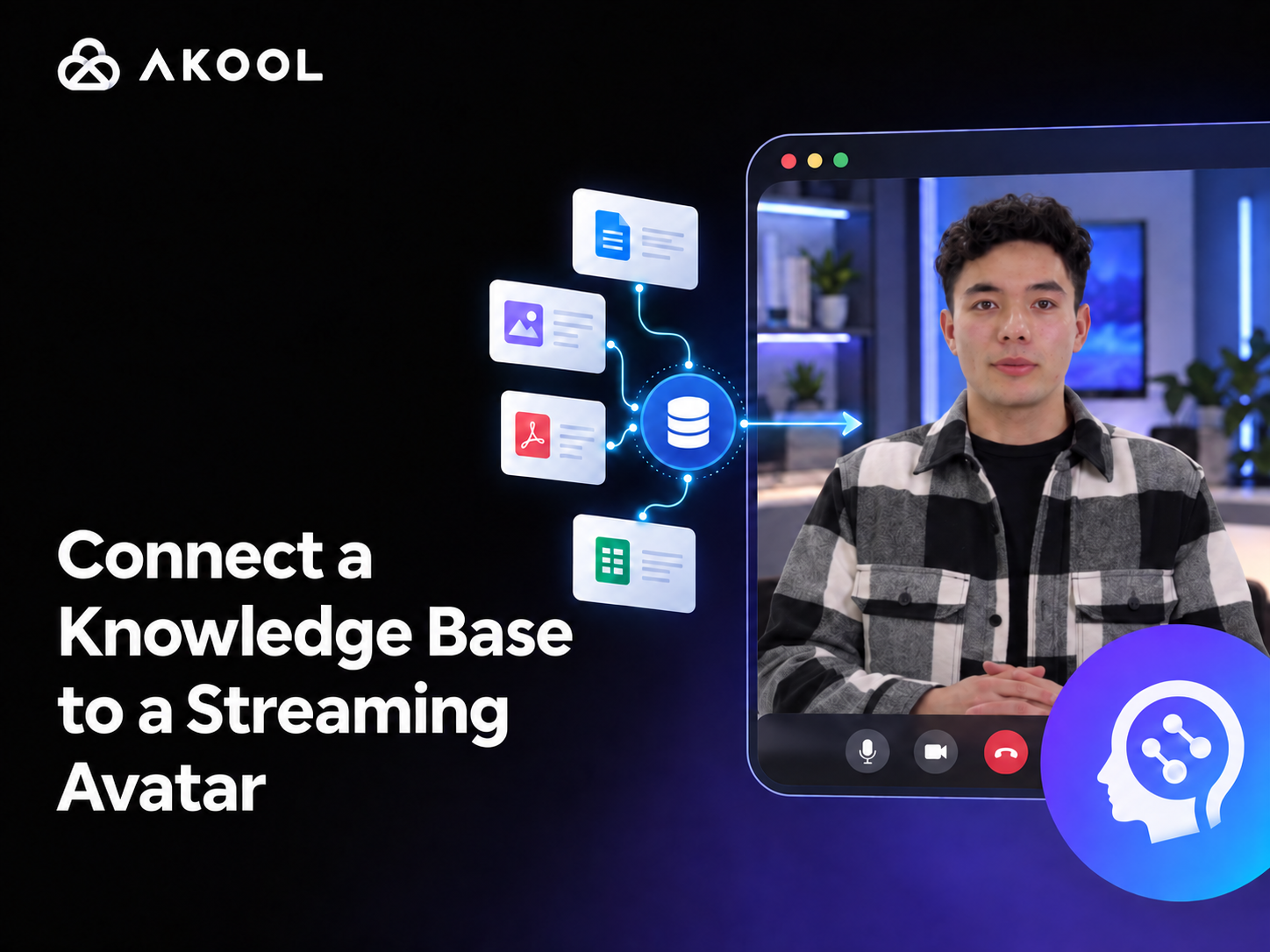

AKOOL’s Streaming Avatar SDK already provides the foundation for real-time video, audio, text, and microphone interaction. The next step is to make that avatar useful for your business by connecting it to trusted product documentation, policies, training materials, or support content.
This guide focuses on that knowledge layer. You will create an AKOOL Knowledge Base, connect it to a Streaming Avatar session with knowledge_id, and verify that the avatar gives grounded answers inside your own application.
Official SDK documentation shows you how to stream an avatar. This guide shows you how to make that avatar understand your business.
What You Are Building
The finished experience combines three parts: your approved knowledge sources, an AKOOL Knowledge Base that prepares those sources for conversation, and a Streaming Avatar embedded in your application. When a user asks a question, the avatar uses the connected knowledge base as context and returns the answer through synchronized speech and video.
The connection between the knowledge layer and the live session is the knowledge_id field. It is added when the Streaming Avatar session is created, before the browser joins the real-time channel.
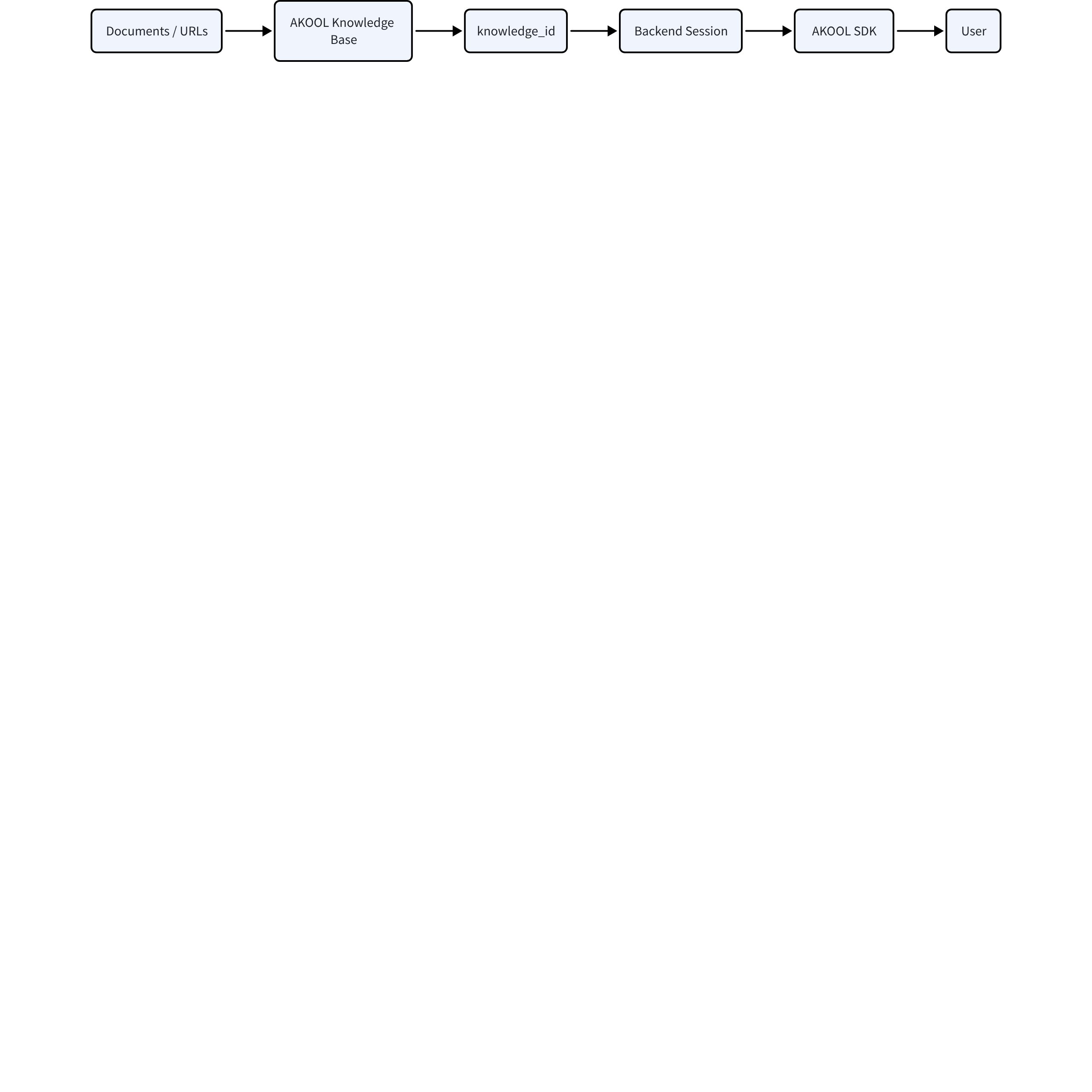
The knowledge sources are processed inside AKOOL and represented by a knowledge_id. Your backend includes that ID when it creates the Streaming Avatar session. The browser then joins the returned session through the AKOOL SDK, allowing the avatar to answer with the approved knowledge while keeping credentials on the server.
Choose Your Build Path
If you want a working prototype quickly, copy the prompt below into an AI coding agent. If you already have an AKOOL Streaming Avatar integration—or prefer to configure the workflow yourself—continue with the Quick Start. Both paths produce the same result: a live avatar whose answers are grounded in your own content.
Option 1: Build with an AI Agent
Copy this prompt into your preferred AI coding agent and provide your AKOOL configuration when requested.
AI Agent build prompt
Option 2: Follow the Quick Start
Use this path when you want to add the knowledge layer to an existing application or understand the integration before handing it to an AI agent.
Before You Begin
You need an AKOOL account with API access, a Streaming Avatar ID, and a working Streaming Avatar application based on the official JavaScript SDK. You can create or manage a Streaming Avatar in AKOOL. Prepare the documents or public URLs the avatar should use. A Voice ID is optional.
If you have not connected to Streaming Avatar yet, complete the Streaming Avatar SDK Quick Start first. This article intentionally does not repeat its installation, channel connection, or media-handling steps.
Step 1: Prepare the Knowledge Sources
Upload supported documents or add public URLs. For a simple first test, a clean, well-structured DOCX is a practical starting point. Keep each source focused on one subject so the knowledge base can retrieve the right passage reliably.
Start with one small, authoritative source set and a narrow test scope. After the first questions return accurate answers, add more documents or URLs in controlled batches and retest.
Step 2: Create the AKOOL Knowledge Base
Complete the core setup fields: a clear name, an opening statement (prologue in the API), an instruction prompt, and the supported documents or public URLs you want AKOOL to use as sources.
Opening statement (prologue): Write the first message the avatar should say when the session starts. Keep it short, welcoming, and aligned with the knowledge base scope.
Prompt: “Answer questions using the approved knowledge sources. Be concise and helpful. If the information is not available, say so clearly and suggest the next support step.”
Wait until the sources finish processing, then copy the Knowledge Base ID. AKOOL uses this value as the knowledge_id for the live session.
Step 3: Connect the Knowledge Base to the Session
When your backend creates the Streaming Avatar session, add the Knowledge Base ID to the request. Use dialogue mode so the avatar can answer questions and continue the conversation.
Example session configuration
The important detail is when this happens: knowledge_id belongs in session creation, not in the browser’s joinChat() call. Once the session is created, the browser can connect with the temporary credentials returned by AKOOL and use the standard SDK interaction flow.
Create the session from your backend, not directly in the browser, so the API key stays private. This cURL example sends the knowledge base ID when the session is created and enables dialogue mode with mode_type: 2.
Create a knowledge-powered Streaming Avatar session
Store the returned session credentials on the server, pass only the required join values to your client, and use them to initialize the AKOOL Streaming Avatar SDK.
Step 4: Add the Avatar to Your Application
Use the AKOOL JavaScript SDK to join the real-time channel, start chat in dialogue mode, display the remote video and audio, and send text or microphone input. This part is identical to the official SDK Quick Start; your application-specific work is deciding where the avatar appears and how users begin, interrupt, and end a conversation.
Keep the knowledge configuration on the session-creation path. This lets the same frontend support different products, regions, or audiences by selecting a different approved Knowledge Base ID on the backend.
Step 5: Verify Grounded Answers
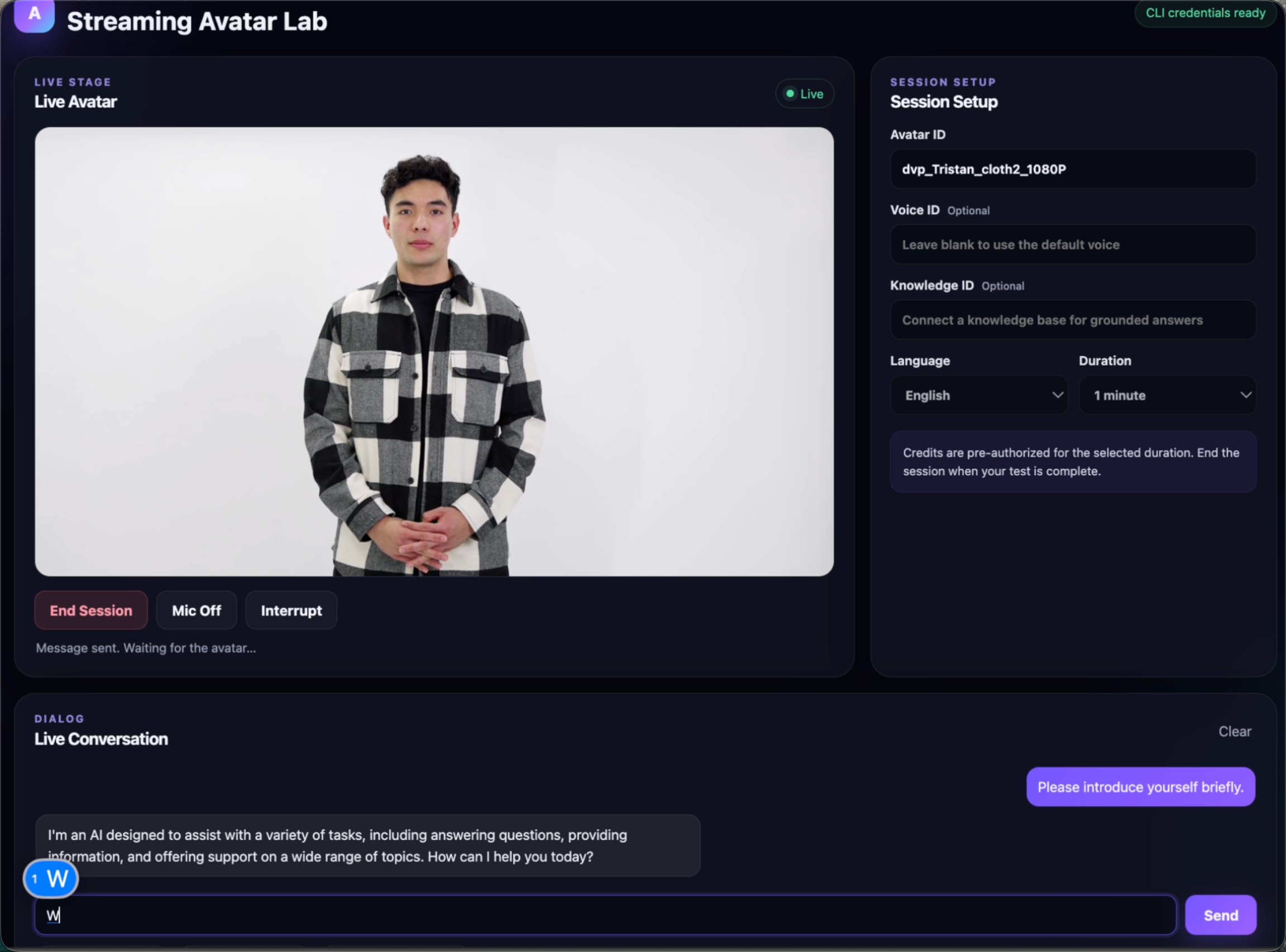
Do not stop after the avatar connects successfully. Confirm that it is actually using the intended knowledge and responding appropriately when the answer is unavailable.
Test | Example | Expected behavior |
|---|---|---|
Exact-source question | Ask for a fact stated directly in a source. | The answer matches the approved content. |
Paraphrased question | Ask for the same fact using different wording. | The avatar finds the same answer naturally. |
Out-of-scope question | Ask about information that is not included. | The avatar acknowledges the limit instead of inventing an answer. |
Follow-up question | Ask a short question that depends on the previous turn. | The conversation remains coherent and relevant. |
Troubleshooting Common Knowledge Base Issues
The avatar ignores the knowledge base. Confirm that the correct knowledge_id is included in the session-creation request. A knowledge base can exist in the dashboard without being attached to the active Streaming Avatar session.
Knowledge base content is not found. Check that every uploaded file or public URL has finished processing before you test. If processing is still pending or failed, the content is not yet available for retrieval.
Answers are inconsistent. Remove stale, duplicated, or conflicting source material. Keep one authoritative version of each fact, use clear headings, and retest with direct questions whose answers appear explicitly in the sources.
The session works, but dialogue does not. Verify that the session was created with mode_type: 2. Then check that the SDK is joining the same session returned by your backend and that the avatar, voice, language, and session configuration are valid. If you create a replacement session while debugging, make sure the client is not still using expired credentials from an earlier response.
Use Cases
Customer support. Let visitors ask product, setup, warranty, or policy questions through a more natural interface than a standard help-center search.
Product discovery. Guide prospects through features, plans, and recommended workflows using approved sales and product content.
Employee training. Turn onboarding guides and internal procedures into a conversational training assistant.
Education and events. Give learners or attendees a live presenter that can answer questions from course materials, speaker notes, or event resources.
Launch Checklist
☐ Knowledge sources are current, authoritative, and fully processed.
☐ The intended knowledge_id is included when the session is created.
☐ Exact, paraphrased, out-of-scope, and follow-up questions have been tested.
☐ The application provides clear Start, Interrupt, and End Session controls.
☐ The final experience has been tested with both text and microphone input.
Resources
- AKOOL Knowledge Base
- Create a Streaming Avatar Session
- Streaming Avatar SDK Quick Start
- Streaming Avatar SDK Best Practices
Frequently Asked Questions
What Is knowledge_id in AKOOL Streaming Avatar?
knowledge_id is the identifier for an AKOOL Knowledge Base. Adding it to a Streaming Avatar session tells AKOOL which processed documents and URLs the avatar should use when answering knowledge-based questions.
When Should I Add knowledge_id to the Streaming Avatar Session?
Add it during session creation on your backend, before the browser joins the session. This ensures the knowledge base is attached from the start and avoids exposing your AKOOL API key in client-side code.
What File Types Can an AKOOL Knowledge Base Use?
AKOOL documents support PDF, DOC, DOCX, TXT, MD, JSON, XML, and CSV files. You can also add public URLs. Use clean, current sources with descriptive headings, and wait for processing to finish before testing retrieval.
Can I Connect an External LLM or RAG Knowledge Base Directly?
The documented Streaming Avatar workflow uses an AKOOL Knowledge Base: add documents or URLs, obtain its knowledge_id, and include that ID when creating the session. Do not assume an arbitrary external vector database or RAG service can be attached directly unless you design and validate a separate application-level integration.