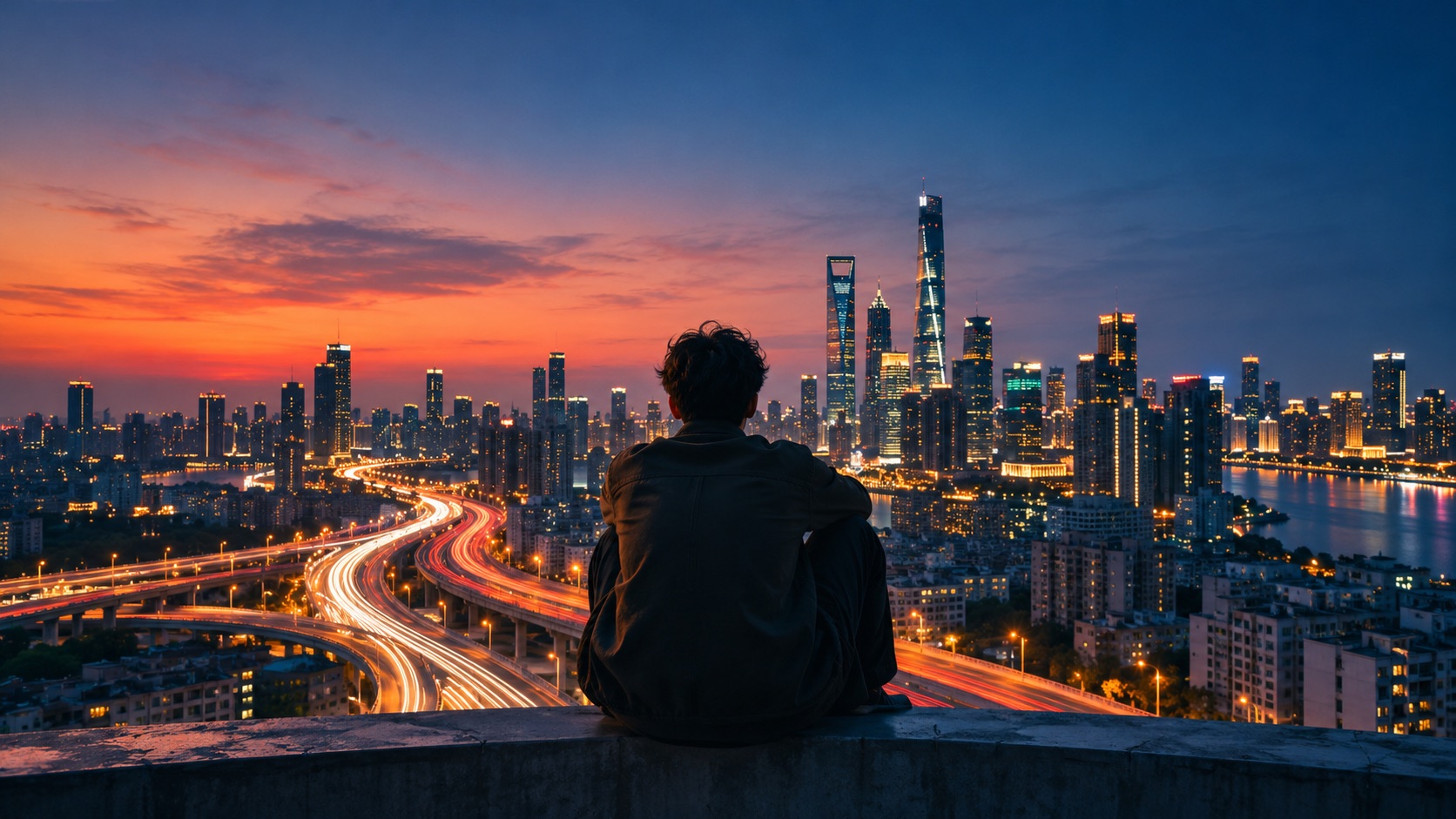

An AI time-lapse makes a long change feel visible in a short clip. Clouds cross a skyline, a room shifts from afternoon to evening, or shadows move along a building while the camera stays still. The trick is to describe what changes and give the model something stable to hold on to.
What makes a generated shot feel like time-lapse?
Look for a recognizable beginning, a continuous progression and a clear end. A sunset works because the lighting and sky can change while the same buildings and horizon stay in view. A fast pan or a series of unrelated cuts gives the impression of speed but breaks the sense of time passing in one place.
Start with one change. A city moving from daylight to twilight is easier to evaluate than an entire construction project, where the geometry is supposed to change. Generated footage can visualize an idea; use recorded footage to document a real event or site.
How to create an AI time-lapse in AKOOL
- Open AKOOL Video Generator and select Create Video. Pick a Veo or Kling version that supports your input. Check the version name, since controls differ across variants.
- Start with text for a new scene. If you need a specific composition, use a permitted still as a start frame when your selected model offers that control.
- Describe the first and last states, what moves between them, and what must stay fixed. Ask for a single shot with a locked camera.
- Choose a short duration and the aspect ratio you plan to publish. Keep Multi-Shot off where available. Review the credit estimate and generate one clip.
- Open My Results. Watch the clip at normal speed, then inspect the first, middle and final frames before downloading. Record the prompt and exact model settings for later revisions.
A copy-ready city time-lapse prompt
A single locked wide shot from a hill overlooking a fictional coastal city at dusk. In a smooth time-lapse, thin clouds travel left to right, the sky progresses from warm late afternoon to deep blue twilight, and windows switch on gradually in separate buildings. The skyline, street layout, horizon and framing stay fixed. Continuous shot, no cuts, no pan, no zoom, no moving buildings, no text.
Check three things in the resulting clip: the sky changes continuously, the windows light at different moments, and the outlines of the buildings hold their positions. Use the same prompt and settings supported by both models if you want to compare them.
How to fix flicker, camera drift or sudden changes
If the shot drifts, remove competing camera cues and repeat the instruction to hold one frame. If buildings ripple or furniture moves, simplify the transformation to light and shadows or try a compatible start frame. If the lighting jumps, describe an intermediate stage between the start and end. Change one part of the prompt at a time so you can see what helped.
For more examples of how to write precise camera and motion instructions, see the AKOOL video prompts guide. Confirm your model’s current options in the model selection guide.